
 English
  Français
  Español
  Deutsch
  Português
  Italiano
  العربية
 Digital Building Twin
A digital building twin that shows your facility live
Draw your building in 3D, wire it to your sensors, and put it on a dashboard — digital twin software built into the platform, not a separate product. Instead of reading a temperature in a table and mentally mapping it to "Cold Store 3, north rack," an operator sees the north rack glow red — the spatial picture your sensor data has been missing.
A dashboard widget · No CAD license required
app.kiloiot.io · Digital Building Twin
Real product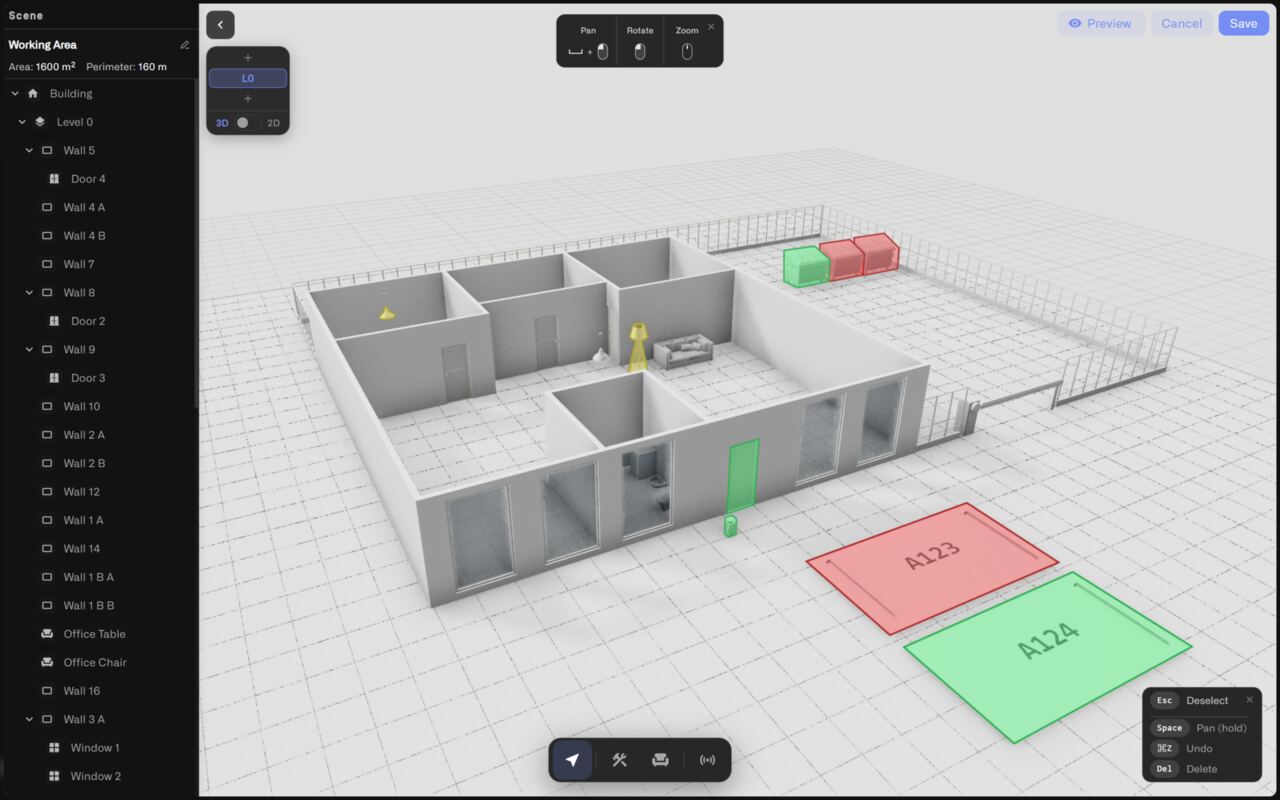
Built-in 3D editor
Digital twin software with the editor built in — no CAD license
The full-screen editor is part of the platform. Draw walls, doors, windows, and fences with two clicks each; pick materials from brick to glass; model every storey of a multi-floor building; and switch between a locked top-down 2D plan for accurate layout and a free-orbit 3D view to check the result at eye level.
Walls, doors, windows, fences
Two-click drawing with grid snap and live length labels — corners stay square, walls stay aligned.
Multi-floor models
Stack floors the way the real building does, work one floor at a time in Solo view, review the whole building in Stack.
2D + 3D of the same scene
Lay out the plan top-down, then flip to 3D — one model, two views.
60+ object catalog
Desks, racks, AC units, pumps, smoke detectors, parking spots, dumpsters — measured, properly scaled 3D models.
Three ways to start
Draw it, import the DXF, or trace it from the map
Start from scratch with the drawing tools, or skip the tracing entirely: import an architectural drawing as a DXF file — the format every major CAD package exports — and the line work becomes scaled walls on the current floor. No plans at all? Open the aerial map, click around the building's outline, and the traced polygon becomes your shell.
Tracing from the map also anchors the model to real GPS coordinates automatically — and any model can be anchored by hand, tying building corners to real latitude and longitude so the twin knows where on the planet it sits.
Wired to your sensors
Bind sensors and watch the smart building recolor itself
A binding connects one sensor reading to one or more objects, plus the color rules that decide what they show: number ranges, string matches, or boolean states — evaluated in order, first match wins. Bind a zone-temperature probe to every desk in the zone and they recolor together; drag the built-in test slider to prove every condition before the model ever reaches a dashboard.
Conditional colors
2–8 °C green, 8–12 °C amber, default red — compliance status without opening a device page.
Labeled drop-pins
Pin the exact reading to the spot it belongs: "Cold Store / Temperature 13.4 °C", colored by the same conditions.
Any reading, any object
Occupancy on parking bays, fill level on dumpsters, fault state on AC units and pumps.
Test before you save
A value slider recolors bound objects in real time — verify conditions before the device even reports.
Lives on your dashboard
A widget on the grid, governed like everything else
The twin is a dashboard widget — digital twin software that lives where your operations already run: it sits in the dashboard's folder hierarchy, resizes on the grid, and follows organization-level sharing and access permissions like any other tile. The camera angle and view you leave the editor with — 2D plan or 3D scene, pins shown or hidden — is exactly what the dashboard renders, live.
For system integrators
A building digital twin clients actually understand
A dashboard of charts needs explaining; a model of the client's own building explains itself. Import the DXF they already have, bind the sensors you installed, and hand over an operational view where every stakeholder instantly knows which corner of the facility is red — and why.
Book a callFAQ
Digital building twin FAQ
Do I need CAD skills or 3D modeling software?
No. The digital twin software is built into the platform — walls are drawn with two clicks, objects are dragged from a catalog, and materials are picked from a grid. You need a recognizable model, not a perfect one, and the drawing tools are designed for exactly that.
Can I use my existing floor plans?
Yes. Import a DXF file — the interchange format every major CAD application exports — and the wall geometry arrives already to scale. You can also trace the building outline from an aerial map, or mix all three approaches freely.
How do the live colors work?
Each sensor metric carries color conditions — number ranges, exact string values, or boolean states — evaluated in order with first-match-wins, plus a default color. Objects bound to that metric recolor in real time as readings arrive, and a test slider lets you verify every band before saving.
Does it handle multi-storey buildings?
Yes. Each floor is its own layer with its own walls, objects, and sensor bindings. Work floor by floor in Solo view, review the stacked building in 3D, and pins stay with the floor they were placed on.
Put your building on a dashboard
Start free with 5 devices, open the widget picker, and draw your first floor today — no payment details required.